
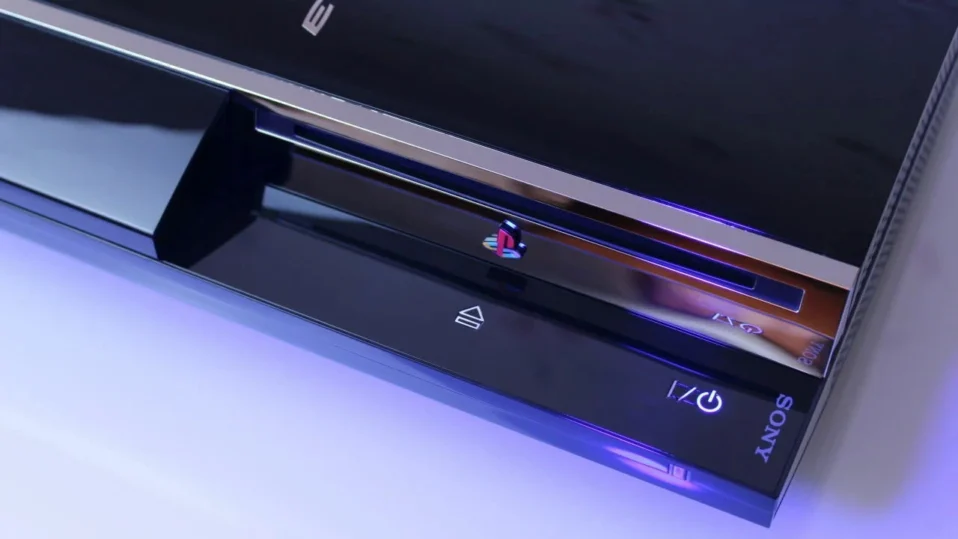
The aPS3e emulator is currently one of the most exciting ways to enjoy PlayStation 3 games directly on your Android phone or tablet. But before you can load any games, you must install the official PS3 firmware. This is the most important first step in the entire setup process.
In this comprehensive guide, you’ll learn exactly how to install PS3 firmware on aPS3e, why it’s required, common mistakes to avoid, and what to do after installation to get the best possible performance.
Whether you’re a complete beginner or have some emulation experience, this guide will walk you through everything clearly and quickly.
What is PS3 Firmware and Why Do You Need It?
PS3 firmware (also called PS3UPDAT.PUP) is the official system software that originally ran on the PlayStation 3 console. The aPS3e emulator needs this firmware to accurately simulate the PS3’s operating system, hardware behavior, and game compatibility.
Without the correct firmware:
- The emulator cannot boot games
- You will see errors or black screens
- Many advanced features won’t work properly
Installing the firmware is a one-time process that unlocks the full potential of aPS3e.
Prerequisites Before You Begin
Before starting, make sure you have:
- A high-end Android device (Snapdragon 8 Gen 2 or newer recommended)
- The latest version of aPS3e installed
- At least 200 MB of free storage space
- The official PS3 firmware file (PS3UPDAT.PUP) ready on your device
- A stable internet connection (for the initial download)
Pro Tip: Always use the most recent firmware version for the best compatibility and stability.
Step-by-Step Guide: Installing PS3 Firmware on aPS3e
Step 1: Download and Install the Latest aPS3e Emulator
Make sure you are running the newest version of aPS3e. Older versions may have bugs during firmware installation.
- Open the Google Play Store and search for “aPS3e”
- Install or update the app and launch it.
- You can also visit the aPS3e download page to get the latest or older versions of the emulator.
The app will greet you with a setup wizard that guides you through the initial configuration.

Tip: If you haven’t installed the aPS3e emulator yet, follow this guide first.
Now that aPS3e is installed, let’s move to the next step.
Step 2: Download the Official PS3 Firmware
The firmware file is named PS3UPDAT.PUP (approximately 196 MB).
- Go to the official PlayStation support page (or use the direct link provided on our Firmware Download page)
- Download the latest PS3 firmware
- Save the file in an easy-to-find location (we recommend creating a folder called “PS3 Firmware” in your Downloads or Internal Storage)
Step 3: Launch aPS3e and Open the Settings Menu
- Open the aPS3e app on your Android device
- Look for the three-dot menu (⋮) in the top-right corner of the screen
- Tap it to open the main menu
You will see several options, including “Install Firmware” or “Add Firmware”.

You will see several options, including “Install Firmware” or “Add Firmware”.
Step 4: Install the Firmware File
- Tap “Install Firmware” (or “Select Firmware”)
- Your device’s file manager will open automatically
- Navigate to the folder where you saved the PS3UPDAT.PUP file
- Tap the firmware file to select it

The emulator will now start installing the firmware. You will see a progress bar. This usually takes 10–30 seconds depending on your device.
Step 5: Verify Installation and Complete Setup
Once the firmwOnce the installation finishes, the app will confirm that the firmware has been successfully loaded.
- You may be prompted to set your game directory (folder where your PS3 ISO/PKG files are stored)
- Tap “Next” or “Continue” to finish the initial setup
Congratulations! Your aPS3e emulator is now fully ready to run PS3 games.vorite PS3 games on Android!
After Firmware Installation: Next Steps & Optimization Tips
Now that the firmware is installed, you can move on to:
- Adding Your Game Files – Learn how to load PS3 ISO and PKG files
- Best Performance Settings – Adjust resolution, PPU/SPU threads, Vulkan settings, etc.
- Controller Setup – Connect your Bluetooth gamepad for the best experience
Quick Optimization Tips After Firmware Install:
- Enable “High Accuracy” mode for better game compatibility
- Use a custom GPU driver (if your device supports it)
- Allocate more RAM to the emulator if you have 12 GB+ on your phone
Common Issues & Troubleshooting
Here are the most frequent problems users face and how to fix them:
| Issue | Solution |
|---|---|
| “Firmware not found” error | Make sure the file is named PS3UPDAT.PUP and is not inside a ZIP/RAR |
| Installation stuck or crashes | Clear aPS3e app cache and try again |
| Wrong firmware version | Always use the latest official firmware |
| Black screen after install | Restart the emulator and re-select firmware |
If you still face issues, feel free to contact us at [email protected] — we reply within 24 hours.
Frequently Asked Questions (FAQs)
Can I use any PS3 firmware version?
Yes, but we strongly recommend the latest version for maximum compatibility.
How long does firmware installation take?
Usually 10–40 seconds on modern Android devices.
Do I need to install firmware every time I update aPS3e?
No. Once installed, the firmware stays unless you clear the app data.
What file format should the firmware be?
It must be the original .PUP file (not renamed or modified).
Final Thoughts Installing the PS3 firmware is the most critical step when setting up aPS3e. Once completed, you unlock the full power of PlayStation 3 emulation on your Android device.
With the firmware in place, you’re now ready to enjoy hundreds of classic PS3 titles on the go. Head over to our next guide — “How to Load and Play PS3 Games on aPS3e” — to complete your setup.
If this guide helped you, bookmark it and share it with fellow emulation enthusiasts!
Happy gaming! 🎮🔥
