
If you are using aPS3e to play PS3 games on Android, the most common goal is simple: better performance, fewer stutters, and the highest frame rate your phone can realistically handle. In most cases, that means trying to get as close as possible to 60FPS in lighter titles and smoothing out frame drops in heavier ones.
The problem is that there is no single magic switch inside aPS3e that instantly turns every game into a flawless 60FPS experience. PS3 emulation is demanding, and the best results usually come from the right mix of hardware, emulator settings, graphics driver choices, and per-game adjustments.
This guide explains how to set up aPS3e properly, which settings matter most, and how to tune the emulator for the best possible performance on Android. Whether you are using a flagship Snapdragon phone or experimenting on a lower-end device, this article will help you get better real-world results.
Table of Contents
Why 60FPS is hard in aPS3e
PS3 emulation is one of the heaviest workloads you can throw at an Android phone. The emulator has to translate PS3 hardware behavior into something your mobile CPU and GPU can process in real time, and that puts heavy pressure on both processor and graphics resources.
That means even if your phone is fast, some games will still struggle because the emulator itself is still developing. A lighter fighting game or arcade-style title may hit or approach 60FPS more easily, while a large cinematic action game may still run far below that target even on powerful hardware.
This is why a 60FPS guide should not promise the impossible. The real goal is to maximize smoothness, reduce wasted performance, and give your device the best chance of hitting full speed wherever the game and hardware make that possible.
What kind of phone works best
The best results in aPS3e usually come from Snapdragon devices, especially newer flagship chips with Adreno graphics and strong cooling. Current setup guidance also notes that Snapdragon phones can benefit from custom drivers, which is one reason they are so often recommended for aPS3e users.
At a minimum, you should aim for Android 10 or newer, Vulkan support, and enough RAM to avoid constant memory pressure. In practical terms, 8GB RAM is a sensible starting point, while 12GB or more gives better headroom for demanding games and longer sessions.

If your phone has weak cooling, even good settings may only help for a short time before performance drops. That is why the best aPS3e devices are not only fast on paper, but also able to sustain that speed without throttling.
Read More: Best Phones to Play PS3 Games Using aPS3e Emulator in 2026
Start with the correct setup
Before optimizing for FPS, make sure the emulator is set up correctly. Current setup guidance says the first required step is installing official PS3 firmware, then selecting your game directory, choosing fonts from firmware, and optionally adding a custom driver if you are on Snapdragon hardware.
If you skip the setup basics, later performance tuning becomes messy and unreliable. A poorly configured emulator can produce glitches or boot issues that look like performance problems but are really setup errors.
In short, do the boring setup work first. It gives you a clean baseline, and that makes every later FPS tweak easier to judge.
The core settings that matter most
The current aPS3e setup guide recommends one especially important CPU setting: set PPU Threads to roughly half the number of cores your device has. For example, on an 8-core device, the guide recommends setting PPU Threads to 4.
This matters because too few threads can leave performance on the table, while too many can create scheduling overhead and instability. The “half your cores” rule is not magic, but it is a useful baseline for most users and one of the most practical starting points available right now.
If you are experimenting, make small changes rather than huge jumps. Test one setting at a time so you know what actually helps your phone and your game.
Use Vulkan as your renderer
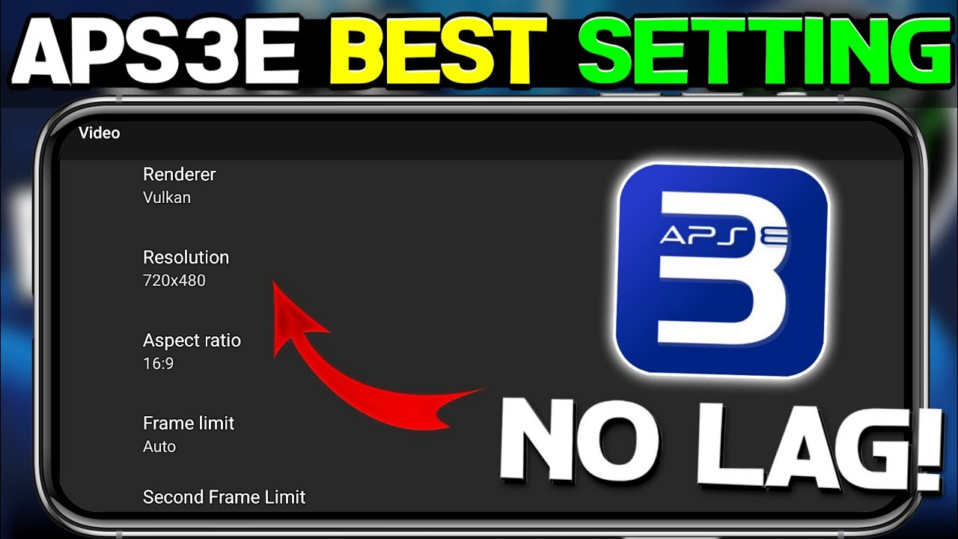
The most widely recommended video setting for aPS3e is Vulkan. The current guide explicitly recommends setting Renderer to Vulkan, and newer setup videos repeat that advice as part of the standard performance path.
Vulkan generally gives better modern Android graphics support and is the renderer you should treat as the default unless a specific game proves otherwise. For most users, changing away from Vulkan is not the first move. Sticking with it gives the emulator the best foundation for performance tuning.
If you are chasing 60FPS, this is one of the first boxes to check. Without Vulkan, you are usually making the job harder from the start.
Frame limit and why it matters
The current guide recommends setting Frame Limit to PS3 Native. That advice is important because it keeps the emulator aligned with the game’s intended behavior rather than forcing an unrealistic cap that can create weird pacing or stability issues.
A common mistake is assuming that changing the frame limit alone will make the game faster. In reality, the frame limit mostly controls the ceiling, not the underlying emulation workload. If your phone cannot render the game smoothly, lifting the cap will not solve that problem.
Use the native frame target as your default, then optimize the rest of the emulator around it. That gives you the cleanest and most predictable performance path.
Write Color Buffers and Write Depth Buffer
The current guide recommends turning on both Write Color Buffers and Write Depth Buffer. These options are often important for correctness and can fix visual problems that otherwise make a game look broken or behave unpredictably.
That said, buffer settings can also affect performance. In some cases they may add overhead, but the tradeoff is often worth it because broken graphics can make a game unplayable even if the FPS number looks decent.
In other words, do not judge settings only by raw speed. A slightly lower frame rate with correct rendering is often better than a faster but visually broken experience.
Should you keep VSync on?
The current guide recommends VSync on as part of the baseline settings. This is a sensible default because it can help with output smoothness and reduce visual tearing, especially on devices where frame pacing is more important than squeezing out a tiny extra performance margin.
However, advanced users may still want to test specific games with and without it if they are chasing every last bit of responsiveness. The safest public recommendation for now is still to leave it on unless a particular game clearly behaves better without it.
As with all performance tuning in aPS3e, per-game behavior matters more than theory alone.

Custom drivers on Snapdragon phones
One of the most important performance advantages for Snapdragon users is access to custom drivers. The current setup guide says Snapdragon devices can get better performance by using custom drivers and links to AdrenoTools driver releases as a source for them.
A setup video also explains that users with Snapdragon processors can choose a custom driver and even use options like force max clock, while noting that this path is not for Mali or Exynos GPU users in the same way. That makes Snapdragon devices especially attractive for aPS3e tuning.
This is a major reason why many aPS3e guides favor Snapdragon hardware. The driver ecosystem gives users more room to solve problems and improve compatibility.
Resolution and internal scaling
If your main goal is performance, lowering resolution is one of the fastest ways to ease GPU load. One setup video specifically recommends lowering resolution toward 720p or even 480p in some cases and reducing resolution scale to around 50 to 60 percent for better performance.
This is especially useful for heavy games or weaker hardware. Lower internal resolution reduces the amount of work the GPU needs to do, which can improve frame rate and make shader-heavy scenes more manageable.
The tradeoff is image sharpness. If you are trying to reach 60FPS, though, resolution scaling is often one of the most powerful tools you have, and it usually matters more than visual polish.
Shader options and precision
A Mali-focused setup walkthrough recommends Async Shader Recompiler and low shader precision as part of a performance-first profile, along with low resolution and buffer tweaks. Those ideas can be useful more broadly because shader handling is a major part of emulator smoothness.
Async shader behavior can reduce the feel of sudden pauses during compilation, while lower shader precision can reduce GPU stress. Not every game responds the same way, but these are the kinds of settings worth testing if you are trying to smooth out stutter rather than only chase peak FPS.
For users writing guides, this is a good example of how “60FPS settings” really means “smart compromises that create a smoother overall experience.”
Performance overlay: always enable it
One setup video recommends turning on the performance overlay and increasing its font size so you can clearly monitor FPS while testing settings. This is one of the simplest but most useful recommendations in any emulator workflow.
Without an overlay, it is easy to fool yourself. A game may feel smoother because of better frame pacing, but the FPS may not have actually changed. The overlay helps you separate real improvement from guesswork.
If you are serious about optimization, keep the overlay on while making changes and only turn it off after you finish testing.
Best baseline settings for most users
If you want a practical baseline before per-game tuning, the current public guidance supports the following setup: install official firmware, use Vulkan, set PPU Threads to about half your device cores, set Frame Limit to PS3 Native, enable Write Color Buffers, enable Write Depth Buffer, and keep VSync on.
On Snapdragon devices, add a compatible custom driver if it improves compatibility or performance, and consider lower resolution scaling if the game is still struggling. For many users, this is the best starting profile because it balances speed, compatibility, and stability.
Think of this as your “safe” configuration. Once it works, you can start adjusting settings one by one to see what each game prefers.
Best settings for Snapdragon phones
Snapdragon phones have the clearest optimization path in aPS3e right now because they can use Adreno-based custom drivers and are widely covered in public setup guides. That makes them the best platform for users who want to seriously tune the emulator.
A good Snapdragon performance profile usually looks like this: Vulkan renderer, custom driver if stable, PPU Threads at roughly half your cores, lower internal resolution for heavy games, performance overlay enabled, and per-game buffer tweaks when specific titles show glitches.
If you have a recent flagship Snapdragon phone, this is the path most likely to get you close to 60FPS in lighter games and significantly smoother performance in heavier ones.
Best settings for Mali and Exynos devices
Mali and Exynos users can still run aPS3e, but they usually have fewer tuning options because the Snapdragon custom-driver path does not apply in the same way. That makes baseline settings even more important on non-Snapdragon phones.
A Mali-oriented setup guide recommends keeping Vulkan, using low resolution such as 480p, setting PPU and LLVM compile threads according to the number of higher-performance cores, using Async Shader Recompiler, low shader precision, and enabling certain buffers to fix graphics problems. It also notes that these settings can help achieve a stable 30FPS in some tests on lower-end hardware.
For these devices, your realistic goal may often be smooth 30FPS rather than 60FPS. The right settings can still make a huge difference, but expectations should match the hardware.
Per-game settings are essential
The current guide specifically points out that you can long-press a game and choose Edit Custom Config, and that any settings changed there apply only to that specific title. This is one of the most important features in aPS3e.
Why does this matter so much? Because no universal profile works equally well for every PS3 game. One game might need buffer options for graphics correctness, another might benefit from lower resolution scaling, and another may only become playable with different thread behavior.
If you want a real 60FPS guide, this is the core lesson: optimize per game, not only per device. That is how you move from average results to genuinely good ones.
Read More: How to Boost FPS and Reduce Lag on aPS3e (Snapdragon & Dimensity Tips) – Complete Guide
How to test settings properly
The best way to test settings is to change one variable at a time. Use the same game scene, watch the performance overlay, and compare average FPS, frame pacing, and visual stability before changing anything else.
If you change five settings at once, you will not know which one actually helped. That leads to bad conclusions and unreliable guides. Good emulator tuning is slow, deliberate, and repetitive.
A simple test flow works well: boot the game, choose a repeatable scene, monitor FPS, change one setting, test again, and keep notes. This sounds basic, but it is how the best emulator guides are built.
Common mistakes that hurt performance
One common mistake is expecting heavy games to hit 60FPS just because lighter games can. Another is copying settings from a different phone without checking whether the chipset, RAM, and GPU driver environment are similar.
Users also often ignore thermals, background apps, and storage conditions. If your phone is hot, battery-saving features are active, or dozens of background processes are open, your emulator performance will suffer no matter how good your settings look on paper.
Finally, many users judge success too early. A game that seems smooth for one minute may become unstable after longer play. Always test for long enough to see whether the result actually holds.
Recommended settings table
| Setting | Recommended baseline | Why it helps |
|---|---|---|
| Renderer | Vulkan | Best current default for aPS3e performance and compatibility. |
| PPU Threads | Half your device core count | Current guide recommendation for balanced CPU behavior. |
| Frame Limit | PS3 Native | Keeps emulation aligned with intended game pacing. |
| Write Color Buffers | On | Helps fix rendering issues in many titles. |
| Write Depth Buffer | On | Improves graphics correctness in affected games. |
| VSync | On | Recommended baseline for smoother output. |
| Custom Driver | Snapdragon only, if stable | Can improve performance and compatibility on supported Adreno devices. |
| Resolution Scale | Lower for heavy games | Reduces GPU load and can improve FPS. |
| Performance Overlay | On while testing | Lets you measure real FPS changes. |
Settings for light, medium, and heavy games
For lighter games, you can often keep the baseline settings and only make small changes. If the title is already near 60FPS, focus on stability, clean frame pacing, and visual correctness rather than aggressive resolution cuts.
For medium-demand games, lower internal resolution and test custom drivers if you are on Snapdragon. Use the performance overlay and see whether buffer options or per-game config changes improve the balance between visuals and speed.
For heavy games, accept that 60FPS may not be realistic on today’s Android hardware. In those cases, the best settings are the ones that produce the smoothest stable experience, even if that means sacrificing sharpness or accepting a lower frame rate.
How to reduce stutter
Stutter is not always just an FPS problem. It can come from shader compilation, storage access, background Android activity, or unstable thermal behavior. That is why some users see frame drops even when the average FPS looks acceptable.
To reduce stutter, close background apps, keep your phone cool, use lower resolution where needed, test async shader-related options if available, and avoid switching too many settings at once. Snapdragon users should also test whether a different custom driver changes the feel of shader-heavy scenes.
Often, the smoothest experience comes from reducing instability rather than increasing the top FPS number.
Best workflow for chasing 60FPS
If your goal is 60FPS, the smartest workflow is simple. First, apply the recommended baseline settings. Second, enable the performance overlay. Third, test a lighter game you know has a chance of reaching full speed. Fourth, adjust only one setting at a time and compare results.
Then repeat the same workflow for heavier games, but adjust your expectations. Some titles will never become true 60FPS games on current phones, and recognizing that early saves a lot of wasted time.
This workflow is not glamorous, but it is reliable. It is also the best foundation for anyone creating trustworthy aPS3e content.
Frequently Asked Questions (FAQs)
What is the best renderer for aPS3e?
Vulkan is the best current default and is specifically recommended in current setup guidance.
What should I set PPU Threads to?
The current guide recommends setting PPU Threads to about half your device core count, such as 4 on an 8-core device.
Should I use custom drivers?
If you have a Snapdragon device, yes, they can improve performance or compatibility in some cases.
Can all games reach 60FPS with the right settings?
No. Some games are still too demanding, and emulator development is still ongoing. The right settings can improve performance, but they do not remove hardware and emulator limits.
Why does my FPS drop after a few minutes?
That is often caused by thermal throttling, background activity, or settings that are too aggressive for your phone.
The best aPS3e settings for 60FPS are not about one secret tweak. They come from using the right baseline: Vulkan, sensible PPU thread settings, PS3 Native frame limit, the correct buffer options, and smart per-game tuning.
On Snapdragon phones, custom drivers and careful resolution scaling give you the best chance of pushing performance further. On Mali and Exynos devices, the focus is usually more on stability and realistic expectations than a perfect 60FPS target.
If you approach aPS3e like a tuning process instead of a one-click solution, you will get much better results. And if your hardware is strong enough, these settings give you the best chance
