
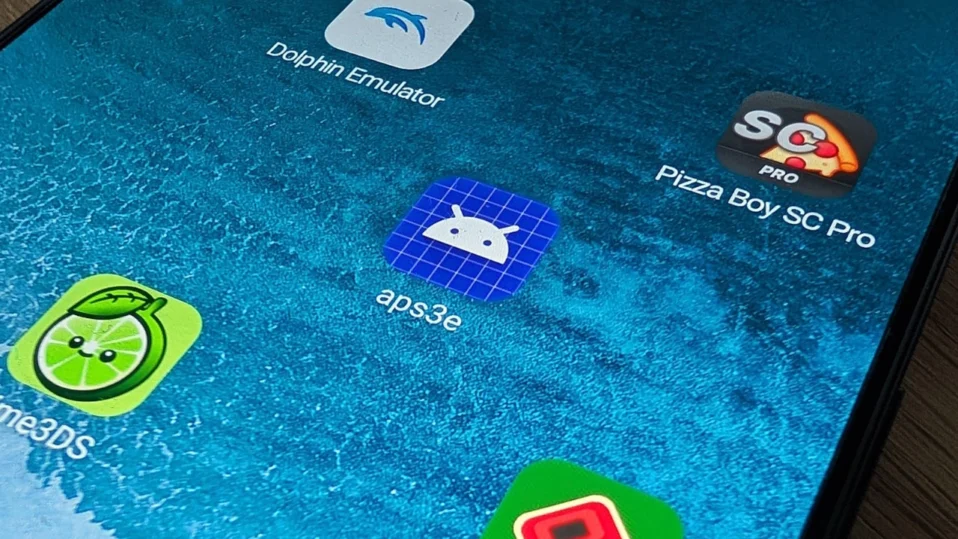
S3e is currently one of the most exciting and powerful options available. This native PS3 emulator brings the legendary PS3 library to mobile devices with impressive performance on high-end hardware.
Whether you want to relive classics like God of War 3, The Last of Us, Grand Theft Auto V, or countless other PS3 titles, aPS3e makes it possible without needing a PC or streaming service. In this comprehensive guide, I’ll walk you through every single step to safely download, install, and set up the aPS3e emulator on your Android device.
By the end of this article, you’ll have a fully working PS3 emulator ready to play games smoothly. Let’s get started!
Table of Contents
Why Choose aPS3e Emulator?
- Native Android app (no PC required)
- Excellent Vulkan graphics support for better speed and visuals
- Regular updates and active development
- Supports both ISO and PKG game formats
- Bluetooth controller compatibility
- Works great on flagship devices with Snapdragon 8 Gen 2 / 8 Elite or equivalent processors
Note: For the best experience, we recommend a high-end Android device with at least 8GB RAM (12GB+ is ideal) and strong Vulkan support.
Prerequisites Before You Begin
Before starting the installation, make sure you have:
- An Android device running Android 10 or higher (64-bit/arm64)
- At least 8GB of RAM (more is better for demanding games)
- Stable internet connection for downloading files
- Enough storage space (PS3 games and firmware can take several GB)
- A file manager app (most phones already have one built-in)
Step 1: Download the Latest aPS3e APK
The easiest way to get the official aPS3e emulator is directly from its official source.
- Open your preferred web browser (Chrome, Firefox, etc.) on your Android device.
- Go to the official download page: https://aps3e.com/download
- Tap the prominent “Download Latest Version” button.
- The latest aPS3e APK file will start downloading automatically.

Tip: Always download from aps3e.com to ensure you’re getting the most recent, verified build with the latest fixes and performance improvements.
Step 2: Enable Installation from Unknown Sources
Since aPS3e is distributed as an APK (not through Google Play in this version), Android needs permission to install apps from third-party sources.
How to enable it (Android 10–14):
- Open Settings on your phone.
- Scroll down and tap Security or Privacy & Security (the exact name varies by brand — Samsung, Xiaomi, OnePlus, etc.).
- Look for Install unknown apps or Unknown sources.
- Select the browser you used to download the APK (usually Chrome).
- Toggle Allow from this source to ON.
Pro Tip: On some devices (especially newer Android versions), you may see a warning. This is normal for any APK installation. Just confirm and proceed.
Step 3: Install the aPS3e APK File
Now that permissions are granted, it’s time to install.
- Open your Downloads folder or pull down the notification shade and tap the completed download.
- Tap the file named aPS3e.apk.
- When the installation prompt appears, tap Install.
- Wait for the process to finish (usually takes 10–30 seconds).
- Once complete, tap Open to launch aPS3e for the first time.

Common Issue & Fix: If you see a Google Play Protect warning saying “Unsafe app blocked,” tap More details → Install anyway. This is a standard safety prompt for APKs downloaded outside the Play Store.

Step 4: Grant Necessary Permissions
When you launch aPS3e for the first time, it will ask for permissions.
- Allow Storage access when prompted. This is essential so the emulator can read your game files and firmware.
- Grant any additional permissions (such as overlay or notification access) if asked — these help with smoother performance and controller support.
You’re now ready to start configuring the emulator!

Step 5: Initial Setup Inside aPS3e
After installation, the emulator will guide you through a quick setup:
- Add your PS3 firmware file (PS3UPDAT.PUP)
- Set your game folder directory
- Configure basic graphics and audio settings
We have dedicated follow-up guides for these steps:
- How to download PS3 firmware.
- How to install PS3 firmware.
- Download PS3 ISO/PKG Game files.
- How to load and Play PS3 games on aPS3e emulator.
Performance Tips for the Best Experience
- Use a high-end device (Snapdragon 8 Gen 2 or newer recommended)
- Close background apps before playing
- Enable Vulkan renderer in settings
- Experiment with resolution scaling and PPU/SPU threads
- Connect a Bluetooth controller for the most authentic feel
Common Issues and Quick Fixes
- App crashes on launch → Make sure you have enough RAM and storage free.
- Black screen → Try changing graphics backend in settings.
- Slow performance → Lower resolution or enable frame skipping temporarily.
- Firmware not loading → Double-check that you’re using the correct official PS3UPDAT.PUP file.
Installing the aPS3e emulator on Android is quick and straightforward when you follow the steps above. In just a few minutes, you’ll have a powerful PS3 gaming experience right in your pocket.
Once installed, you can enjoy hundreds of classic PlayStation 3 titles on the go — from epic adventures to fast-paced action games. With regular updates from the developer, performance and compatibility continue to improve every month.
Ready to start gaming? Download the latest aPS3e emulator now from the official site: https://aps3e.org/download
If you have any questions or run into issues, feel free to check our other detailed guides or leave a comment below. Happy gaming!
