
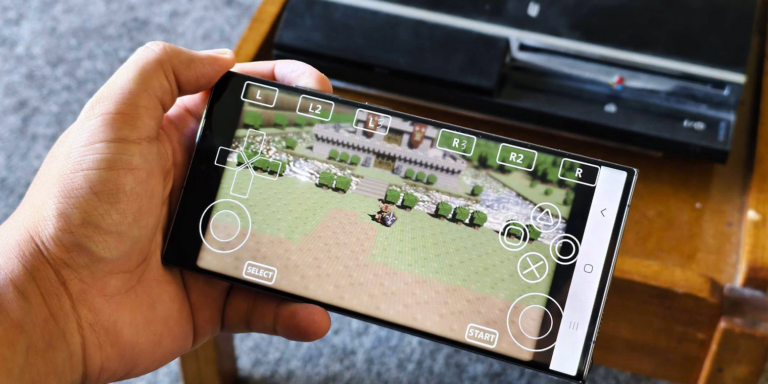
If aPS3e feels slow, stuttery, or unstable on your phone, the solution is usually not one hidden toggle. Better PS3 emulation on Android comes from a combination of the right emulator settings, smart phone-side tuning, lower thermal stress, cleaner storage behavior, and realistic expectations based on your chipset. Snapdragon devices often have an advantage because Adreno GPUs are commonly associated with stronger Vulkan support and more community driver experimentation, while Dimensity phones usually benefit most from balanced settings, lower internal resolution, and better heat control.
That is exactly what this guide covers. You will learn how to improve FPS, reduce stutter, lower input lag, manage heat, and tune aPS3e for both Snapdragon and Dimensity processors without relying on random copy-paste settings from short videos. The goal here is practical performance: smoother gameplay, fewer frame drops, and a setup that stays usable even after ten or fifteen minutes of actual play.
This article is written for users who want a detailed, WordPress-ready guide they can actually follow. So instead of just listing a few settings, I will explain why each tweak matters, when it helps, when it hurts, and how to test changes properly so you do not waste hours changing everything at once.
Table of Contents
Why aPS3e is so demanding on Android
PlayStation 3 emulation is heavy because the PS3 was built around unusual hardware, especially its Cell processor design and its own graphics pipeline. On Android, the emulator has to translate that original console behavior into instructions your phone can execute in real time, and that process creates a huge CPU and GPU workload. Even when a game boots, maintaining smooth frame pacing is much harder than simply opening the game and showing menus.
This is why a phone that feels fast in normal gaming can still struggle in aPS3e. Native Android games are optimized for Android hardware, drivers, and thermal limits, but PS3 emulation adds translation overhead, shader compilation, cache generation, and game-specific quirks. A demanding PS3 title can easily expose weaknesses in sustained CPU performance, GPU driver quality, memory bandwidth, and thermal design.
It also explains why benchmark scores alone do not tell the full story. Two phones with similar synthetic results may behave very differently in aPS3e because of differences in cooling, RAM speed, Android version, storage speed, game mode implementation, and Vulkan driver quality. That is why one user may report playable performance on a chipset while another gets constant lag on what looks like similar hardware.
What actually causes FPS drops and lag
Most aPS3e lag comes from one or more of these problems: CPU bottlenecks, GPU overload, shader compilation stutter, thermal throttling, unstable drivers, or title-specific compatibility issues. If you do not identify which one is hitting your setup, it is easy to apply the wrong fix. For example, lowering resolution helps if the GPU is overloaded, but it will not fully solve stutter caused mainly by CPU translation or heat-related throttling.
Shader compilation is one of the most misunderstood sources of lag. On first boot, many games build shaders while you move through menus or gameplay scenes, and that can create obvious stutter even on strong phones. This kind of stutter often improves after caches are built, which is why judging performance from the first two minutes alone can be misleading.
Thermal throttling is the other big culprit. A phone may run a game decently at first, then start dropping clocks once temperatures rise. When that happens, FPS falls, frame times become inconsistent, audio can crackle, and the whole experience feels worse every minute. A lot of users treat this like a settings problem when it is actually a cooling problem.
Before changing settings
Before touching anything inside the emulator, make sure your expectations match your hardware. Some recent aPS3e setup videos suggest at least 6GB RAM as a minimum starting point, while stronger results are more likely on Snapdragon 855 and above, Dimensity 8100 class hardware, or newer flagship chips. That does not mean weaker devices cannot boot games, but it does mean heavy PS3 titles become much less realistic on entry-level hardware.
You should also separate light games from demanding ones. A fighting game, smaller arcade title, or older sports game may be playable on hardware that completely fails in a cinematic AAA game. This matters because many people test only one very heavy title, then assume the emulator or phone is useless. In reality, game selection changes everything.
Finally, remember that emulator maturity matters too. Even powerful phones can struggle in games that are not yet well optimized for the current Android emulation stack. So your job is not to chase a perfect universal setting, but to find the most stable profile your phone and your game can actually sustain.
Core settings that matter most
Many users lose time changing every option they can find, but only a handful of settings usually produce the biggest gains. The main ones are renderer choice, internal resolution, shader behavior, CPU thread configuration, and frame pacing controls. Start there first because they affect the largest performance bottlenecks.
Current aPS3e setup examples commonly point users toward Vulkan, low internal resolution such as 480p for weaker devices, async shader-related behavior, and selective CPU thread tuning. RPCS3 configuration references also show options like shader mode, shader quality, multithreaded RSX behavior, asynchronous texture streaming, and thread-related controls, which supports the idea that these are real high-impact tuning areas rather than cosmetic changes.
If you keep one rule in mind, make it this: change one major setting at a time and test the same in-game scene repeatedly. That is the only reliable way to know whether a setting actually improved FPS, reduced stutter, or just changed the problem in a different way.
Best graphics settings for performance
For most devices, Vulkan is the first renderer to try because it is the path most frequently recommended in recent aPS3e setup material and broader RPCS3-style tuning advice. Vulkan generally offers better control and lower overhead on supported hardware, especially where the driver stack is strong. On Android emulation, that usually gives it an edge over heavier or less optimized rendering paths.
After that, reduce internal resolution before doing anything fancy. If your phone is weak or midrange, start at 480p. If your phone is stronger, you can test 720p later, but only after you have confirmed that the game is stable and not already close to throttling. Resolution is one of the simplest and most effective ways to reduce GPU load, and it is often the difference between a stuttery mess and a playable session.
Do not upscale early just because the game looks blurry. In PS3 emulation on Android, visual sharpness is expensive. If the phone cannot maintain smooth output at a low resolution, pushing more pixels usually makes stutter worse, increases heat, and creates worse long-session performance even if the first few moments look okay.
Shader settings and stutter control
Shader-related options are extremely important because they affect one of the biggest sources of hitching during gameplay. Current aPS3e guides repeatedly mention async shader modes and lower shader precision as performance-friendly choices, especially on weaker phones. Async behavior can reduce the visible impact of shader compilation by handling more of that work in a less blocking way.
RPCS3 configuration documentation also references async shader compiler modes, low shader quality options, multithreaded RSX support, and asynchronous texture streaming. That matters because it confirms that shader pipeline tuning is not just community folklore; it is a real part of emulator configuration design.
In simple terms, if your game stutters badly every time a new effect appears, then shader handling is likely part of the problem. Start with async options, keep shader precision lower if the build allows it, and test the same scene again after the cache has already been built once. In many cases, second-run smoothness is much better than first-run smoothness.
CPU settings and thread tuning
CPU settings can help, but they are also easy to misuse. One recent aPS3e guide specifically mentions using PPU threads set to 2 and LLVM compile threads set to 0, while older low-end RPCS3 community guidance also focuses on keeping thread-related tuning conservative and testing incrementally instead of blindly pushing values higher. That is important because more threads do not automatically mean better performance on mobile hardware.
On some devices, aggressive thread values increase overhead or make frame pacing worse. On others, small changes may reduce bottlenecks in a specific game. The only safe rule is to treat CPU tuning like fine adjustment, not like a miracle button. First fix renderer, resolution, shader mode, and thermals. Then test CPU-related values one by one.
If you change several CPU options together, you lose the ability to tell what actually helped. That creates the classic problem where users swear by a “best settings pack” but do not know which part was useful and which part was harming stability. Good testing is boring, but it saves time.
VSync, frame skip, and frame caps
These options can help with smoothness, but they need to be used carefully. Some recent aPS3e setup examples recommend VSync and even frame skip on weaker devices, while other settings packs prefer uncapped or different pacing depending on the title. The reason is simple: not every game responds the same way, and not every device has the same bottleneck.
VSync can sometimes improve presentation by reducing tearing or frame pacing issues, but it can also add responsiveness costs in some cases. Frame skip may make a game feel more playable when true full-speed emulation is not realistic, but it can also make motion look rough. A frame cap, especially around 30 FPS for heavier titles, may produce a steadier experience than chasing a wildly unstable higher number.
The right question is not “Which option is best?” but, “Which option gives the most stable result on my phone in this exact game?” Test the same gameplay section for several minutes, not just one menu or cutscene, before deciding.
Why Snapdragon usually performs better
Snapdragon phones often have an advantage in Android emulation because Adreno GPUs are commonly associated with stronger Vulkan support and wider community driver experimentation. Recent aPS3e demonstrations show users working with custom drivers on Snapdragon-based devices, including specific Adreno driver references and performance-focused testing paths. That driver ecosystem gives Snapdragon users more room to optimize than many other Android GPU setups.
This does not mean every Snapdragon phone is automatically fast. A weak Snapdragon chip can still struggle, and poor cooling can still ruin sustained performance. But when two similarly positioned devices are compared for advanced Android emulation work, Snapdragon often has a practical tuning advantage because the software ecosystem around Adreno is simply more mature for this kind of experimentation.
If you own a recent upper-midrange or flagship Snapdragon phone, you usually have the best chance of getting usable results in heavier PS3 titles. Even then, some games will still be too demanding, but the headroom for testing custom drivers, Vulkan improvements, and sustained performance profiles is usually better.
Best Snapdragon tips for aPS3e
The first Snapdragon-specific tip is to test a compatible custom Vulkan driver if your version of aPS3e supports that feature. Recent setup examples show custom driver use as a meaningful part of performance testing on Snapdragon devices, and that is one reason Snapdragon users often report better tuning flexibility. A different driver can improve performance, shader behavior, or stability in one game, though it may create glitches in another.
That leads to the second tip: keep notes during testing. Do not just say “custom driver is better.” Write down which driver, which game, what resolution, and what happened over a ten-minute session. Driver choice is title dependent. A driver that helps a fighting game may introduce visual bugs in a heavy cinematic title. Treat it like a per-game optimization tool, not a universal fix.
The third tip is to be careful with force max clocks. Some aPS3e test examples mention force max clocks in combination with Snapdragon hardware, and it can improve short-run results. But it also increases heat rapidly. If your phone gets hot and then tanks performance after several minutes, force max clocks may be worsening your real long-session experience even if the first minute looks impressive.
The fourth tip is to avoid overconfidence with high resolutions. Snapdragon flagships can tempt users into pushing 720p or beyond too quickly. But if the game is already CPU-heavy or thermally unstable, higher resolution may only turn a borderline playable game into a stuttering one. Start low, confirm stability, then increase gradually.
Why Dimensity needs a different strategy
Dimensity phones can still run aPS3e, but they often benefit from a different tuning style. Instead of chasing maximum clocks and driver swapping, Dimensity setups usually respond better to balanced thermal control, lower resolution, and steady frame pacing. MediaTek has publicly highlighted improvements from Android gaming-related tuning, including reduced frame-rate jitter and lower power draw in a sustained gaming scenario. That matters because smoothness over time is often the real challenge in emulation.
In practice, Dimensity users should focus more on sustainable settings than peak showcase numbers. If your phone runs well for two minutes and then falls apart, the issue is not just raw power. It is how well the device can hold that power under emulation load.
Because custom GPU driver discussion is more visible around Adreno-based devices, Dimensity users usually get more value from clean system tuning, proper game mode testing, cooling improvements, and realistic game selection. That approach is less flashy, but often more effective.
Best Dimensity tips for aPS3e
Start at 480p and stay there until the game proves it can run smoothly. This is especially important on midrange Dimensity phones where thermal buildup and GPU pressure can become obvious quickly. If the emulator is already stuttering at low resolution, raising resolution will almost never solve the real problem.
Use game mode, but do not assume the highest-performance preset is always best. Android’s Game Mode documentation explains that OEM interventions can change frame-rate behavior, GPU load, and even backbuffer sizing, and these changes can alter how a game feels over time. On some devices, a balanced mode can outperform a peak mode in sustained sessions because it avoids intense heat spikes.
Focus on lighter games first. Dimensity devices can often deliver respectable results in less demanding PS3 titles when settings are controlled properly, but heavy AAA games remain much harder. This is not a failure of the phone alone; it is a combination of emulator demands, thermal limits, and game complexity.
Most importantly, keep the phone cool. Dimensity performance can look much better when the device is not trapped in a hot case, charging aggressively, or running in a warm room. If your test conditions improve, your emulation results often improve too.
How heat destroys performance
Thermal throttling is one of the main reasons aPS3e becomes frustrating after the initial wow factor wears off. Once the phone gets too hot, the system reduces CPU and GPU clocks to protect itself. That drops FPS, makes frame times more uneven, and often increases the feeling of input lag even if the game is technically still running.
This is why “best settings” screenshots can be misleading. A setup that looks amazing in a one-minute test may collapse in a ten-minute one. In emulation, sustained performance matters more than short bursts. You want the phone to stay good enough, not just peak once.
If you only remember one thermal rule, remember this: the coolest stable setup usually wins over the hottest aggressive setup. Lower resolution, lower brightness, less charging heat, and better airflow can do more for real gameplay than exotic settings changes.
Practical cooling tips that work
There are several simple thermal fixes that are worth doing because they cost little and consistently help sustained performance:
- Lower your screen brightness during testing and long sessions, because higher brightness adds extra heat.
- Remove thick protective cases if they trap heat around the back of the phone.
- Avoid fast charging while playing if your device already runs hot under load.
- Use a fan, clip-on cooler, or even a cooler room when testing heavy titles for more than a few minutes.
- After a first boot with heavy shader compilation, let the phone cool briefly before retesting the same scene.
None of these tips are glamorous, but they work because they attack the real cause of many long-session FPS drops. Emulation punishes hot phones very quickly.
Android system tweaks outside aPS3e
Phone-side tuning matters more than many users think. Background apps, sync services, recording overlays, extra RAM features, and poor network behavior can all steal resources or raise heat. When you are running something as demanding as PS3 emulation, that extra overhead matters.
Before launching aPS3e, close heavy apps such as camera tools, browsers with many tabs, social apps, and anything actively syncing in the background. If your phone has memory expansion features such as virtual RAM options, compare performance with them on and off because at least some user experiences report better behavior after disabling RAM Plus-style features. This will vary by device, so test rather than assume.
It is also smart to restart the phone before a serious testing session if it has been running for a long time. A clean boot can reduce background clutter, stabilize free memory, and make your test more consistent. And if the game does not need internet, offline play is often the cleanest way to avoid extra interruptions.
How Android Game Mode can help
Android’s Game Mode framework gives device makers tools to adjust how games behave on supported phones. According to Android’s documentation, interventions can include things like WindowManager backbuffer resizing and FPS throttling, both of which can change GPU load and power behavior. Google’s documentation notes that backbuffer resizing can reduce GPU load by up to 30 percent and system power use by up to 10 percent in some cases, which is highly relevant for thermally sensitive emulation scenarios.
That does not mean Game Mode will magically fix aPS3e. But it does mean your phone may already have system-level controls that influence smoothness, heat, and stability. A balanced or standard gaming mode may sometimes outperform an all-out performance mode over a longer session because it keeps temperatures in check and reduces severe throttling later.
The best way to test Game Mode is simple: choose one demanding gameplay scene, run it for five to ten minutes in standard mode, then repeat in performance mode and balanced or battery mode. Compare not just peak FPS, but how smooth the game feels and how much it degrades over time.
Storage, firmware, and file placement
Fast storage helps more than people expect. Large PS3 game files, shader caches, and emulator data all benefit from quick internal storage, especially on devices with UFS 3.x or UFS 4.x class performance. If possible, keep your aPS3e game files and cache-related data on internal storage rather than slower external storage options.
Free storage space matters too. Phones that are nearly full often behave worse under heavy workloads because the system has less room for temporary operations and cache growth. When PS3 emulation is already pushing memory and storage heavily, low free space can add extra hitching and instability.
It is also a good idea to keep your emulator build and required system files in a clean state. Corrupted data, bad transfers, or fragmented file setups can create random problems that look like performance issues. If a specific game suddenly behaves much worse than before, consider whether the data itself changed.
How to test first-boot stutter correctly
A very common mistake is treating first boot performance as the final verdict. During first boot, the emulator may be compiling shaders and generating caches while the game is also loading assets and scenes for the first time. That can create stutter that is worse than what you will see later.
A better test method is to use three passes. First, boot the game and play through the initial heavy stutter. Second, restart or replay the same section after the cache exists. Third, run a longer session to see whether performance stays stable or collapses under heat. This method tells you whether the real problem is shader compilation, sustained thermals, or full game incompatibility.
This kind of structured testing saves time. Without it, users often misdiagnose one-time compilation stutter as a permanent FPS issue or, just as often, mistake temporary early smoothness for a stable long-session setup.
Suggested settings by device class
Entry-level phones
Keep expectations very low. Use Vulkan if available and stable, set resolution to 480p, choose performance-friendly shader behavior, close all background apps, and stick to lighter titles. Do not expect demanding AAA PS3 games to feel good on entry-level hardware just because they boot.
Weak or average midrange phones
This is the group that benefits most from disciplined tuning. Stay at 480p, test async shader options, use balanced thermals, avoid high brightness, and focus on less demanding games first. On these devices, every source of extra heat or background load hurts more.
Upper-midrange phones
This is where aPS3e starts to become meaningfully interesting. Snapdragon upper-midrange devices may gain from custom driver testing, while Dimensity upper-midrange devices usually benefit from careful game mode testing and stable thermal conditions. Even here, 720p should be tested only after 480p proves stable.
Flagships
Flagships give you the best headroom, but they still do not guarantee perfect PS3 emulation. Use them to improve consistency, not to assume every game will be full speed. Heavy games can still be limited by emulator maturity, shader behavior, or title-specific complexity.
Settings mistakes to avoid
Many performance problems come from bad testing habits rather than from the emulator itself. Here are the most common mistakes:
- Raising resolution too early because the game looks blurry, even though the phone is already struggling.
- Changing many CPU or graphics options at the same time, which makes it impossible to know what helped.
- Testing only for one or two minutes and ignoring thermal throttling that appears later.
- Leaving screen recording, chat bubbles, overlays, or extra performance monitors active during serious tests.
- Fast charging while gaming and then blaming the emulator for heat-induced lag.
- Assuming a settings video made for a Snapdragon flagship will work the same on a Dimensity midranger.
If you avoid these mistakes, your tuning process becomes much faster and much more reliable.
Why some games will always run better than others
Game choice matters more than many users want to admit. Some PS3 games are simply lighter on the emulator, while others hammer both CPU and GPU translation paths. Fighting games, smaller action titles, and less demanding releases are often better starting points than open-world games, heavy cinematic titles, or technically ambitious exclusives.
This is why a single “best settings” article can only go so far. Good settings help, but the game itself still determines a huge part of the result. If a lighter title runs well while a heavy blockbuster does not, that does not necessarily mean your settings are bad. It may just mean the heavier game is beyond what your device and the current emulator build can sustain.
The smart strategy is to build one stable general profile, then make small per-game changes only when needed. That way you have a strong baseline without getting lost in endless tweaking for every title.
Step-by-step tuning workflow
If you want the fastest practical route to smoother gameplay, follow this order:
- Set the renderer to Vulkan and keep the internal resolution at 480p.
- Choose async shader behavior and lower shader precision if your build exposes those options.
- Close background apps, reduce brightness, remove thick cases, and stop charging if heat is already high.
- Boot the game once, then retest the same scene after shader cache has been built.
- Run a five- to ten-minute session to check whether thermals destroy performance over time.
- On Snapdragon, test a compatible custom driver if supported. On Dimensity, prioritize game mode testing and thermal stability instead.
- Only then experiment with CPU thread values, frame skip, VSync, or frame caps one at a time.
This order works because it attacks the biggest bottlenecks first and avoids the chaos of changing everything together.
Troubleshooting common aPS3e issues
Low FPS immediately after boot
Lower the resolution, confirm Vulkan is enabled, use async shader-related options, and test whether the game itself is simply too demanding for your phone. If the title is a major AAA release and your device is only midrange, hardware limits plus emulator maturity may be the main reason performance is low.
Good performance at first, bad performance later
This usually points to thermal throttling. Improve cooling, lower brightness, remove the case, stop charging, and compare standard or balanced game mode against performance mode. The fastest mode is not always the most stable mode.
Audio crackling even when FPS looks acceptable
This often means frame pacing is still unstable. Try lower resolution, steadier frame limits, and check whether your build exposes time-stretch-related audio behavior. Community discussion around RPCS3 settings has also referenced time stretching as a way to reduce some audio distortion scenarios.
Visual glitches after changing a driver
Return to the stock driver or test another compatible one. Driver swaps can improve speed, but they can also create rendering bugs, broken effects, missing shadows, or outright crashes in specific games.
Game boots but controls feel delayed
Input lag can come from unstable frame pacing, thermal drops, heavy VSync behavior, or a game running far below full speed. Reduce load first, then retest. Smooth frame delivery often improves perceived control responsiveness even before FPS numbers rise dramatically.
Realistic expectations for 2026
aPS3e and Android PS3 emulation are improving, but this is still one of the hardest forms of emulation you can run on a phone. Current test videos and setup guides make it clear that results vary heavily by chipset, game, build version, and driver path. Optimization is real, but no single setting can turn every phone into a perfect PS3 machine.
That is why your goal should be stability over hype. A steady 20 to 30 FPS with fewer spikes can feel far better than a game that swings wildly between higher peaks and ugly dips. Smoothness, predictable frame times, and lower thermal drop-off are often more valuable than a flashy screenshot of a temporary FPS peak.
In other words, the best aPS3e setup is not the one that looks strongest in a short demo clip. It is the one that stays playable in your actual hands over real play time.
Final tips for Snapdragon and Dimensity users
If you use a Snapdragon phone, your biggest advantage is flexibility. Vulkan behavior is often stronger, custom driver testing is more realistic, and upper-tier Snapdragon hardware generally gives you the best chance at meaningful PS3 emulation on Android. Use that advantage wisely by testing drivers carefully, keeping thermals under control, and resisting the urge to push graphics too hard too soon.
If you use a Dimensity phone, your path is different but still workable. Focus on low resolution, steady thermals, balanced game mode behavior, and realistic game choice. MediaTek’s own gaming-related performance discussion points to the importance of sustained smoothness and lower jitter, and that idea fits mobile emulation perfectly.
For both chipsets, the smartest rule is the same: change one thing at a time, test properly, and judge performance over several minutes instead of several seconds. That is how you turn random tweaking into real optimization.
Frequently Asked Questions (FAQs)
Is Snapdragon better than Dimensity for aPS3e?
In many cases, yes, mainly because Snapdragon devices often benefit from stronger Adreno-related Vulkan support and more visible custom driver experimentation in the Android emulation community. But final results still depend on the exact chip, cooling, phone design, and the game you are trying to run.
What is the best resolution for aPS3e?
For performance testing, 480p is the safest starting point. If your phone stays stable and cool, you can try 720p later, but only after confirming the game is already playable at lower resolution.
Why does a game lag less on the second run?
Because first-run shader compilation and cache generation often create extra stutter. Once that data has been built, the same section may run more smoothly, though thermal throttling can still cause later lag.
Should I use force max clocks?
Only as a test tool and only with caution. It can improve short-run performance, but it also raises heat and can make long-session throttling worse.
Can game mode improve aPS3e performance?
Yes, sometimes. Android’s Game Mode system can adjust GPU load and frame behavior through OEM interventions, and a balanced gaming mode may produce smoother sustained performance than a more aggressive mode on some devices.
Why does audio crackle even when the game seems playable?
Audio crackling often points to unstable frame pacing, not just low average FPS. Lowering resolution, smoothing frame delivery, and avoiding thermal drops can help.
