
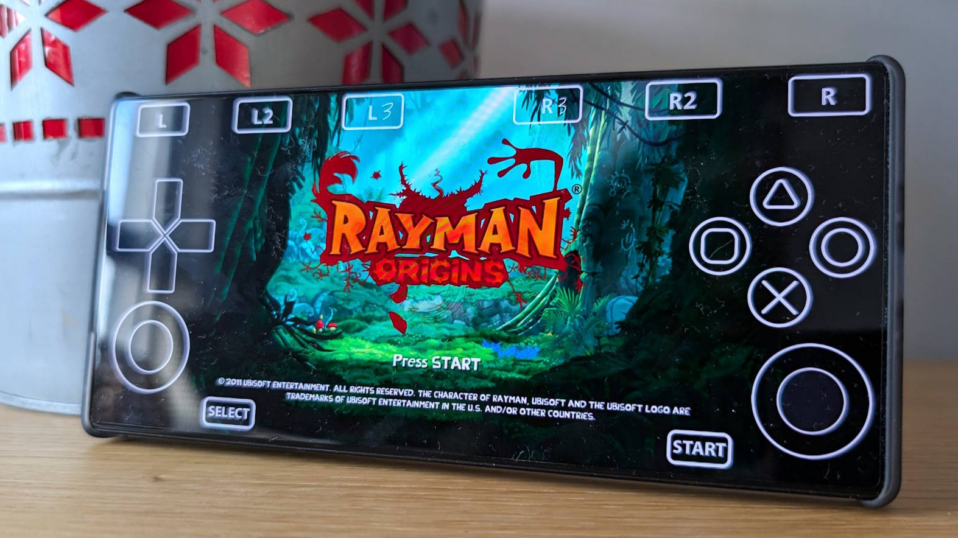
Playing PlayStation 3 games on your Android phone or tablet has become much more practical thanks to aPS3e, one of the most advanced native PS3 emulators available for Android. If you want to revisit classics such as God of War 3, GTA V, The Last of Us, or Uncharted on mobile, aPS3e gives you a real shot at doing that with a surprisingly straightforward setup.
This guide walks you through every major step needed to install the emulator, add official PS3 firmware, load your game files, and start playing as smoothly as possible. It also includes practical performance tips, common troubleshooting fixes, and a few best practices that can save you time and frustration later.
Whether you are a complete beginner or someone who already knows a little about Android emulation, this guide is written to help you get from installation to gameplay without missing anything important.
Table of Contents
Troubleshooting common issues.
Step 1: Download and install aPS3e emulator
The first step is to install the official aPS3e app on your Android device. This is the foundation for everything else, so it is worth taking a moment to make sure you are getting the right version from a trusted source.
Open the Google Play Store on your phone or tablet and search for aPS3e developed by aenu. From there, tap install on the official app. There is both a free version and a premium version that removes ads, so you can choose the one that best fits your preference.
You can also use the official download page or the latest APK from the project’s GitHub if you are comfortable doing that manually. For beginners, the Play Store version is usually the best choice because it is easier to keep updated and is the simplest path to a clean installation.

After installation, launch the app once so the emulator can complete its initial setup screen and prepare for firmware installation.
Minimum requirements for smooth performance
Before you start loading games, it helps to know what kind of hardware gives you the best chance of good results. aPS3e is still demanding, and the smoother your device is, the better your gameplay experience will be.
- Android 10 or higher, 64-bit.
- Snapdragon 8 Gen 2, Snapdragon 8 Elite, Dimensity 9400+, or a similarly strong flagship processor.
- 8 GB RAM minimum, with 12 GB or more strongly recommended.
- At least 50–100 GB of free storage, since PS3 games are very large.
These are not hard guarantees of performance, but they are good practical targets. If your device falls below them, you may still be able to run some games, but you should expect more slowdowns, crashes, or compatibility issues.
Also Read: How to Download and Install aPS3e Emulator on Android – Complete Step-by-Step Guide
Step 2: Install the official PS3 firmware
aPS3e cannot run PS3 games without the official PlayStation 3 firmware. This is a required one-time step, and it is one of the most important parts of the setup process.
Download the latest PS3UPDAT.PUP firmware file, ideally version 4.92 or newer, from the official PlayStation website or from a trusted firmware page. Save it somewhere easy to find on your device, such as your Downloads folder.
Next, launch aPS3e. On the first-run setup screen, tap the option to select firmware, or open the menu in the top-right corner and choose the firmware installation option. Navigate to the folder where you saved the PS3UPDAT.PUP file and select it.

The emulator will begin installing the firmware. This may take one to three minutes depending on your device speed and storage performance. Once it finishes, the emulator will be ready to accept game files.
Make sure your internet connection is stable while downloading the firmware file, since the file is fairly large and you do not want a corrupted download. A clean firmware installation is essential if you want games to boot properly later.
Also Read: How to Install PS3 Firmware on aPS3e Emulator on Android – Complete Step-by-Step Guide
Step 3: Get your PS3 game files
Once firmware is installed, the next step is getting your PS3 game files ready. aPS3e supports two major formats: decrypted ISO files and PKG files. ISO files are generally the easiest and most stable option for most users, while PKG files are used for digital versions of games.
Whichever format you use, the key is to keep your files organized and properly prepared before loading them into the emulator. If your files are incomplete, encrypted incorrectly, or stored in the wrong folder structure, the emulator may not detect them or may fail to launch them correctly.
A dedicated folder is the easiest way to stay organized. Create one called PS3 Games in your internal storage or on an SD card if your device supports it. Keep your game files directly inside that folder rather than scattering them through multiple subfolders, because a flat structure is usually easier for the emulator to scan.
Best practices for game files
- Use decrypted ISO files when possible.
- Keep game files in a clearly named folder.
- Place files directly in the main folder instead of using too many nested subfolders.
- Make sure your files are complete and in the correct format.
- For PKG games, keep the matching RAP license file ready if required.
If you are just getting started, ISO files are usually the least frustrating option. They are easier to manage, easier to identify, and often easier to get running without extra steps.
Step 4: Add and load PS3 games into aPS3e
Now comes the fun part: actually loading your games. Once the emulator is installed and firmware is ready, adding games is usually straightforward if your files are in the right format and location.
For ISO games (recommended method)
ISO files are the easiest way to get started. Open aPS3e, tap the three-dot menu in the top-right corner, and select the option to set your ISO directory. Browse to your PS3 Games folder and select it.
Confirm your selection and wait a moment. In most cases, your games should automatically appear in the emulator’s main library list. Once they show up, you can tap on a title to launch it right away.
If your games do not appear immediately, double-check that the ISO files are actually in the folder you selected and that the directory is the root folder containing the games. A wrong folder level is one of the most common setup mistakes.
For PKG games
PKG games are also supported, but they usually require a little more attention. From the main menu, open the three-dot menu and choose the option to install ISO or PKG. Then locate your PKG file and select it.

The emulator will install the game, and the process may take a few minutes depending on the size of the file and the speed of your device. Once installation is complete, the game should appear in your library and be ready to launch.
If the game requires a RAP file, make sure the matching RAP license file is placed in the correct folder. Without it, some PKG titles may fail to unlock or launch properly.
How to launch a game
After the game appears in your library, launching it is simple. Just tap the game title from the list and aPS3e will begin loading it. Depending on the game and your hardware, the first boot may take a little longer than later launches.
If a game starts successfully but seems slow on the first load, give it a little time before making changes. Some games need a moment to build caches or settle into normal performance during the first session.
Once you have one game working, you can use the same setup method to load more titles. Over time, your library will become easier to manage, and you will start to learn which games your device handles best.
Also Read: Complete Guide: How to Install and Load PS3 Games on aPS3e Emulator for Android
Bonus: performance tips for the best experience
Good hardware helps, but the right settings can make a big difference too. If you want smoother gameplay and a better chance of reaching playable FPS, a few simple optimization steps are worth trying.
Go into the CPU settings and set PPU Threads to roughly half your device’s core count. For example, on an 8-core phone, 4 threads is a sensible starting point. This is a practical baseline that can help balance load without overcomplicating the emulator’s scheduling.
Also Read: Best Phones to Play PS3 Games Using aPS3e Emulator
In Graphics settings, enable Vulkan if it is not already active. Vulkan is generally the best renderer choice for aPS3e on modern Android hardware. You can also test options such as Write Color Buffers and Use BGR Format, since some games benefit from them depending on how they render.
Also Read: Best aPS3e Settings for 60FPS – Ultimate Performance Guide
Use a quality Bluetooth controller if possible. DualSense, Xbox, and 8BitDo controllers are all good choices because PS3 games often feel much better with proper physical controls than with touch inputs alone.
Finally, close background apps before starting a game, and if your phone has a Game Mode or Performance Mode, turn it on. Reducing background load can help the emulator maintain steadier frame rates and reduce stutter during more demanding scenes.
Troubleshooting common issues
Even with a clean setup, you may run into a few common problems. Most of them are easy to fix once you know what to look for.
Game not showing up
If a game does not appear in the library, first check whether you selected the correct ISO directory. Make sure the game files are in the root of the PS3 folder and not buried in extra nested subfolders.
Also make sure the file type is correct and that the ISO or PKG file is complete. A missing or damaged file can prevent the emulator from detecting the game.
Black screen or crash
If the game launches to a black screen or crashes immediately, the first thing to verify is firmware installation. If the firmware is missing or incomplete, the game may not boot correctly.
If firmware is fine, try lowering graphics settings, switching to Vulkan if you are not already using it, or testing a different driver if your device supports one. Some games are simply more sensitive to configuration than others.
Slow performance
If the game is running but feels slow, try reducing the resolution, disabling unnecessary effects, and closing other apps running in the background. On Snapdragon devices, a compatible custom GPU driver may also help improve results.
Keep your expectations realistic as well. Some PS3 titles are demanding enough that they will never run perfectly on current mobile hardware, even if the emulator is configured well.
PKG installation fails
If PKG installation fails, check whether the matching RAP file is present and properly placed. If the license file is missing, the emulator may not be able to complete the installation or unlock the game properly.
Also make sure the PKG file itself is valid and not corrupted. Re-downloading a damaged file is often the simplest fix.
Recommended folder structure
Good organization makes everything easier. A simple folder structure helps you find your games, avoids confusion, and reduces the chance of selecting the wrong directory inside the emulator.
A practical example would be:
Internal Storage
└── PS3 Games
    ├── Game 1.iso
    ├── Game 2.iso
    ├── Game 3.pkg
    └── RAP Files
You do not need to overcomplicate this. The simpler and cleaner your file structure is, the easier it is for aPS3e to detect and manage your games.
Useful beginner tips
If this is your first time using aPS3e, start with one known game rather than loading a huge library immediately. This makes troubleshooting much easier because you can focus on one setup at a time.
Also, do not change too many settings at once. Install the emulator, add firmware, load one game, and confirm that everything works before you start fine-tuning performance options.
Finally, remember that aPS3e is improving over time. If a game does not run perfectly today, it may perform better in a future update. Keeping your app updated is one of the easiest ways to benefit from ongoing improvements.
Also Read:
- How to Boost FPS and Reduce Lag on aPS3e (Snapdragon & Dimensity Tips) – Complete Guide
- aPS3e on Snapdragon 8 Elite vs Dimensity 9400+ – Which Chip Wins?
Best practices for better results
- Use official firmware from a trusted source.
- Keep your game files organized in a dedicated folder.
- Prefer ISO files if you want the easiest setup.
- Use Vulkan for graphics performance.
- Test per-game settings instead of relying on one universal profile.
- Close background apps and use performance mode when available.
- Keep a backup of your firmware and game files if possible.
These habits may seem simple, but together they create a much smoother emulator experience. The more organized your setup is, the less time you will spend fixing avoidable issues.
With aPS3e, you can enjoy a huge library of PlayStation 3 games directly on your Android device. The overall process is straightforward once you understand the main steps: install the emulator, add official firmware, prepare your game files, and load them into the app.
From there, a few performance tweaks can make a big difference in how smoothly your games run. The right settings, a strong device, and a little patience go a long way toward creating a very enjoyable PS3 gaming experience on the go.
Follow this guide carefully, keep your setup organized, and you should be able to start playing your favorite PS3 titles on Android with far less hassle. As aPS3e continues to improve, the experience is only likely to get better.
Enjoy your console-level gaming on the go with aPS3e.
